Provisioning PostgresSQL RDBMS on AWS with Terraform
In this guide, we will learn how to provision a managed PostgresSQL database using Amazon RDS (Relational Database Service) with Terraform. RDS makes it easy to set up, operate, and scale a relational database in the cloud.
Why would you want a database? Most web applications need to store and retrieve structured data. A relational database like PostgresSQL provides a reliable way to manage this data with support for complex queries, transactions, and relationships. So let's get started!
Overview
We are going to create infra same as before but with the RDS database integrated. Let's begin by looking at the architecture diagram:
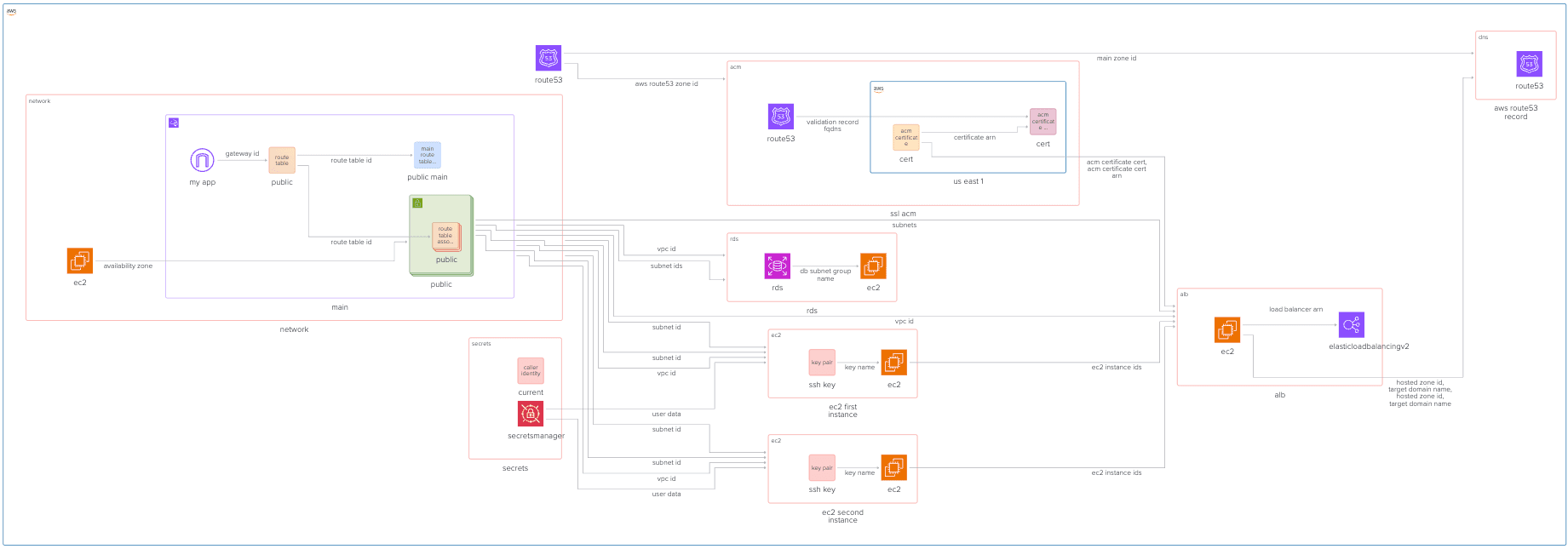
Github Repository
This guide full code is available in https://github.com/Ship-Infra/ship-infra-project/tree/main/v8-rds-database. Feel free to clone it and follow along!
Adding RDS Module
First, let's create a new Terraform module for RDS. Create a new folder called modules/rds and add the following files:
# modules/rds/main.tf
resource "aws_db_instance" "postgres" {
  identifier         = "postgres-db"
  engine             = "postgres"
  engine_version     = "15"
  instance_class     = "db.t3.micro"
  allocated_storage  = 20
  storage_type       = "gp2"
  skip_final_snapshot    = true # for dev; not recommended in production
  publicly_accessible = true
  username           = # To be filled soon
  password           = # To be filled soon
  db_name            = # To be filled soon
  vpc_security_group_ids = [] # To be filled soon
  db_subnet_group_name = # To be filled soon
}
Above resource creates a PostgresSQL database instance with the specified parameters. We are using db.t3.micro instance class which is quite small and suitable for development and testing purposes. The allocated_storage means 20GB allocated for this database, and we are using PostgresSQL database here. The skip_final_snapshot is a parameter used in AWS RDS (Relational Database Service) operations, such as when deleting a database instance with Terraform or the AWS CLI. If skip_final_snapshot = true, AWS will not create a final backup (snapshot) of your RDS instance before deleting it. We will keep it as is for our testing purpose, but it is recommended to set it to false for production use.
Usually, a database should be placed in private subnets for security reasons. You can create new private subnet in the modules/network and get it here using var.private_subnet_ids. However, for simplicity, we will use public subnets here. One of the side-effects of having database in a public subnet is that it will have a public endpoint, which is not recommended for production use (but fine for testing).
Besides being inserted in a subnet, the database also needs to be part of a security group that allows access to it, It also needs database name, username and password to be created. We will provide these as variables.
# modules/rds/variables.tf
variable "database_name" { type = string }
variable "database_username" { type = string }
variable "database_password" { type = string }
variable "subnet_ids" { type = list(string) }
variable "vpc_id" { type = string }
And finally, we can add an output to get the database endpoint:
# modules/rds/outputs.tf
output "database_endpoint" {
  value       = aws_db_instance.postgres.endpoint
  description = "The connection endpoint for the Postgres database."
}
Defining Security Groups for RDS
We will create a simple resource that allows inbound access to PostgresSQL port 5432.
# modules/rds/main.tf
resource "aws_security_group" "rds_sg" {
    name        = "rds_sg"
    description = "Allow Postgres access"
    vpc_id      = var.vpc_id

    ingress {
        from_port   = 5432
        to_port     = 5432
        protocol    = "tcp"
        cidr_blocks = ["0.0.0.0/0"]
    }

    egress {
        from_port   = 0
        to_port     = 0
        protocol    = "-1"
        cidr_blocks = ["0.0.0.0/0"]
    }
}
And now, we can use this security group in our database instance:
# modules/rds/main.tf
resource "aws_db_instance" "postgres" {
  ...
  vpc_security_group_ids = [aws_security_group.rds_sg.id]
}
Creating the RDS Subnet Group
AWS RDS requires a subnet group with at least 2 subnets in different Availability Zones for high availability and failover capabilities. For example, your database subnet group can include two private subnets from different AZs.
We already have subnets created in modules/network, so we can create a subnet group in the RDS module like this:
resource "aws_db_subnet_group" "default" {
  name       = "rds-subnet-group"
  subnet_ids = [for id in var.subnet_ids : id]

  tags = {
    Name = "RDS Subnet Group"
  }
}
Now, add this subnet group to the database instance:
# modules/rds/main.tf
resource "aws_db_instance" "postgres" {
  ...
  db_subnet_group_name = aws_db_subnet_group.default.name
}
Using the RDS Module
Finally, we can use the RDS module in our main Terraform configuration. Open main.tf and add the following:
module "rds" {
  source             = "./modules/rds"
  database_name      = "my_app_db"
  database_username  = "your_username"
  database_password  = "your_secure_password"
  subnet_ids         = module.network.public_subnet_ids
  vpc_id             = module.network.vpc_id
}
Make sure to replace your_secure_password with a strong password. Preferably, use Terraform variables or AWS Secrets Manager to manage sensitive information like passwords. You can read more about securing secrets in Provisioning AWS Secret Manager and Securing Secrets.
Outputs
In outputs.tf, add the following to get the database endpoint:
output "database_endpoint" {
  value       = module.rds.database_endpoint
  description = "The connection endpoint for the Postgres database."
}
Testing the Setup
Let's provisiong the infrastructure by running:
terraform init
terraform apply --auto-approve
This will create the RDS database along with the rest of the infrastructure. After the apply is complete, you should see the database endpoint in the outputs.
Outputs:

database_endpoint = "postgres-db.cspuccciib8v.us-east-1.rds.amazonaws.com:5432"
You can use this endpoint to connect to your PostgresSQL database using any Postgres client. Let's test the connection using psql command-line tool:
# Note, you need to install psql client first if you don't have it already
psql \
  --host=postgres-db.cspuccciib8v.us-east-1.rds.amazonaws.com \
  --port=5432 \
  --username=your_username \
  --dbname=my_app_db

# Received prompt like this:
> Password for user your_username:
# Enter the password you specified earlier
# You should see the psql prompt if the connection is successful:
psql (17.5, server 15.14)
SSL connection (protocol: TLSv1.2, cipher: ECDHE-RSA-AES256-GCM-SHA384, compression: off, ALPN: none)
Type "help" for help.

my_app_db=>
And you are connected to your PostgresSQL database running on AWS RDS! Now you can start creating tables, inserting data, and running queries.
Destroying Infra
Remember, infra has costs. When you are done experimenting, you can destroy the infra like follows:
terraform destroy --auto-approveConclusion
In this guide, we learned how to provision a managed PostgresSQL database using Amazon RDS with Terraform. We created a dedicated RDS module, defined security groups, and subnet groups, and integrated the database into our existing infrastructure. With the database up and running, you can now build applications that leverage its capabilities for data storage and retrieval.
Usually the connection to the database should be done from application servers running in private subnets for security reasons. In production scenarios, consider additional aspects such as automated backups, monitoring, scaling, and high availability configurations. Explore more about RDS features in the Amazon RDS Documentation.